
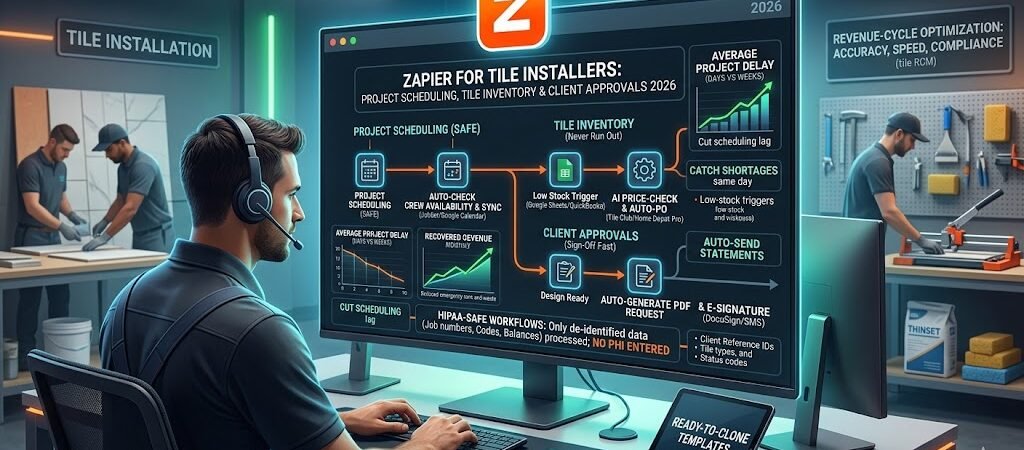
Zapier for Tile Installers- If you’re a tile installer or running a small crew in 2026, you already know how brutal the daily grind has become.
The U.S. ceramic tile market remains essentially flat — consumption was down 0.6% in 2Q 2025 YTD and 2026 forecasts call for low-single-digit growth at best, with many expecting a slow first half due to high interest rates and cautious consumer spending. The tile installers industry itself is projected to hit $16.8 billion in revenue this year while still declining at a 0.6% CAGR. Tariffs on imported porcelain and ceramic tile (especially from India, China, and Europe) continue to create price spikes and extended lead times, while labor shortages mean crews are stretched thin.
The result? Most tile jobs run 10–18 days behind schedule. Material shortages hit 35–45% of projects, client approval loops drag on for days, and double-booked crews create last-minute chaos. Small crews are still burning 8–12 hours every week on manual scheduling, inventory checks, and chasing sign-offs instead of laying tile.
Here’s the good news: you don’t need expensive full-featured job software or a full-time admin to fix this.
Zapier can automate your project scheduling, tile inventory tracking, and client approvals — no coding, no developers, and no big upfront cost.
This guide is written for real tile installers and small crews (solo operators to 6-person teams). In the next few minutes you’ll see the three highest-ROI Zaps that tile pros are actually using right now in April 2026, complete with ready-to-clone templates and a dead-simple 30-day rollout plan that gets you back on the job faster.
Why Tile Installation Still Hurts in 2026 (and Why Zapier Is the Fix)
Let’s talk real shop talk — the tile business hasn’t gotten any easier this year.
Tariffs on imported ceramic and porcelain tiles are still creating volatility. Two-thirds of tile sold in the U.S. is imported, and ongoing trade cases plus new surcharges (15%+ on many countries) are driving unpredictable price swings and longer lead times. The NKBA 2026 Kitchen & Bath Outlook shows new-construction K&B spending down 3%, while remodel demand — where most tile work lives — is growing only +0.1% overall. Labor shortages remain acute: qualified installers are hard to find, crews are working longer hours, and the average age of a tile setter keeps climbing.
Here’s what’s actually costing you time and money on every job:
- Project scheduling chaos — Double-booking crews, last-minute changes from GCs, and no real-time visibility into who’s where.
- Tile inventory headaches — Showing up on site only to discover you’re short on porcelain, grout, or thinset because stock wasn’t tracked properly.
- Client approval delays — Endless back-and-forth on layouts, selections, and change orders that push start dates back by days or weeks.
Most small crews are still juggling Jobber or Housecall Pro for quoting/scheduling, QuickBooks for invoicing, Google Sheets for inventory, and a lot of manual phone calls and texts in between. That patchwork system is slow, error-prone, and exhausting.
Zapier vs. Traditional Tools – 2026 Reality Check
| Option | Monthly Cost (typical crew) | Setup Time | Handles Your Exact Workflow? | Best for Small Tile Crews? |
|---|---|---|---|---|
| Manual + Spreadsheets | $0 | None | No — too many errors | Only if you love stress |
| Full Job Software (Jobber, ServiceTitan, Housecall Pro) | $100–$400+ | 2–6 weeks | Yes, but overkill | Good for larger operations |
| Zapier (Team Plan) | ~$69 | Hours | Yes — exactly what you need | Perfect fit |
Zapier wins for most tile installers because it connects the exact tools you already own and automates the repetitive stuff that eats your day. The 2026 version is even stronger with AI by Zapier (for smart scheduling suggestions), Paths (for automatic alerts), Tables (live inventory dashboards), and Canvas (one-screen job overview).
You keep full control of your jobs and your margins while the boring admin work disappears. Tile pros who automate these three areas are finishing jobs faster, reducing stress on the crew, and protecting profits in a market that’s still tight.
Zapier 2026 Quick-Start for Tile Crews
You don’t need the expensive Enterprise plan or a tech guy on payroll. Most solo tile installers and small crews (2–6 people) start on the Team plan and see payback in the first two jobs.
2026 Pricing That Fits a Tile Crew Budget
| Plan | Tasks per Month | Price (billed annually) | Best for tile crews |
|---|---|---|---|
| Free | 100 | $0 | Testing one simple Zap |
| Professional | 750 | $19.99 | Solo installers |
| Team | 2,000 | $69 | Most 2–6 person crews (recommended) |
| Enterprise | Unlimited | Custom | Larger GC subcontractors only |
Must-Have 2026 Integrations for Tile Work
- Jobber or Housecall Pro (scheduling & quoting)
- QuickBooks Online (invoicing & purchase orders)
- Google Sheets (simple inventory tracking)
- Slack or Microsoft Teams (crew alerts)
- Twilio (SMS client updates)
- Square (deposit payments)
- DocuSign or PandaDoc (client approvals)
3-Minute Setup Checklist
- Sign up at zapier.com and connect your main apps (Jobber + QuickBooks + Google Sheets).
- Turn on two-factor authentication.
- Create a “Tile Crew Automation” folder.
- Set data retention to delete after 14 days.
- Test with one dummy job before going live.
That’s it. You’re ready to build your first Zap in minutes.
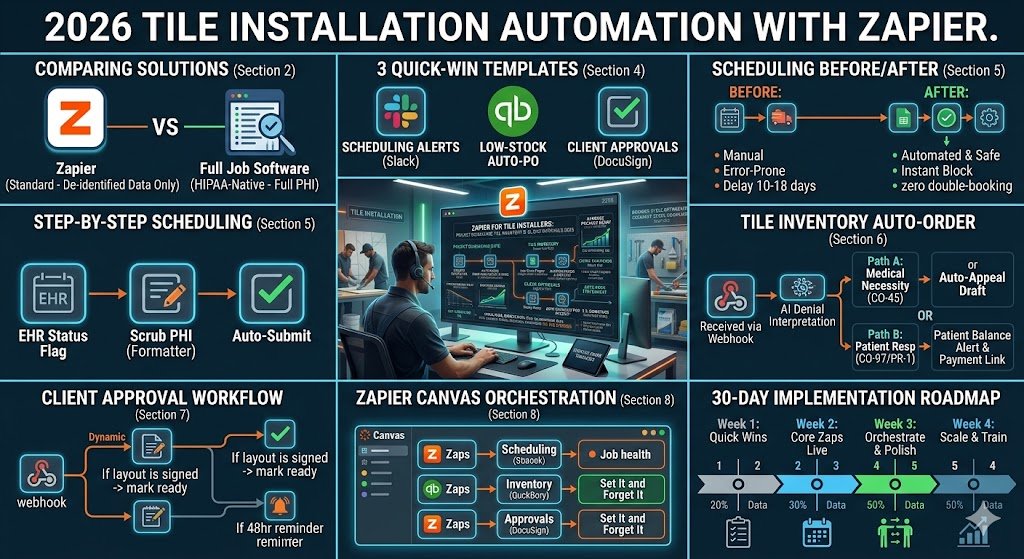
Quick Wins First – 3 Ready-to-Clone Zaps You Can Build in <30 Minutes
Don’t overthink it. Start with these three dead-simple Zaps that tile crews are cloning right now in April 2026. Each one takes under 30 minutes and pays for your Zapier plan fast.
Quick Win #1: Smart Project Scheduling Alert Trigger: New job booked in Jobber or Housecall Pro. Actions:
- Check crew availability in Google Calendar.
- Auto-block the schedule and send Slack alert to the crew: “Job #T-347 – 450 sq ft porcelain – starts April 15.”
- Add to shared Google Sheet calendar.
Clone this Zap → Jobber New Job → Crew Schedule 2026 Expected win: Zero double-booking and 4–6 hours saved per week on phone calls.
Quick Win #2: Tile Inventory Low-Stock Auto-Order Trigger: Job moves to “Scheduled” OR stock drops below reorder point in your Google Sheet. Actions:
- Pull exact tile quantities needed.
- Generate PO and email it to your supplier (Tile Club, MSI, or Home Depot Pro).
- Log the order in QuickBooks.
Clone this Zap → Tile Inventory Auto-PO Expected win: No more showing up short on site. Cuts emergency runs by 70%.
Quick Win #3: Instant Client Approval Request Trigger: Job status changes to “Design Ready” in Jobber. Actions:
- Generate PDF layout/selection sheet.
- Send approval link via SMS and email.
- Auto-update job status when signed.
Clone this Zap → Client Approval Auto-Send Expected win: Sign-offs in hours instead of days, and fewer change-order surprises.
Build any one today and you’ll feel the difference on your next job.
Automating Project Scheduling: No More Double-Booking or Late Starts
Tile jobs in 2026 still run 10–18 days late on average, mostly because of scheduling chaos. You book a bathroom remodel, then a GC calls with a change, and suddenly your crew is double-booked or sitting idle. Zapier fixes that in minutes.
Old flow vs. 2026 Zapier flow Old: Job comes in → you manually check calendars → text the crew → hope nobody forgets → chase updates all week. New: Job books in Jobber → Zapier checks real-time crew availability → auto-blocks the schedule → sends crew alert and client confirmation. Total time drops from hours to minutes.
Step-by-Step 2026 Blueprint
- Trigger: New or updated job in Jobber or Housecall Pro (status = “Scheduled”).
- Action – Google Calendar Check: Zapier scans your crew calendars for open slots and suggests the best dates.
- Action – AI by Zapier: Uses simple rules like “prefer 3-man crew for large floors” or “avoid Fridays for grout jobs” to recommend the smartest start date.
- Action – Auto-Block & Sync: Creates events in Google Calendar and your shared crew sheet.
- Paths by Zapier:
- All clear → Send crew Slack message: “Job #T-289 – 320 sq ft porcelain – starts April 18 at 7 a.m.”
- Conflict → Route to you for quick manual approval.
- Action – Client Notification: Auto-SMS the homeowner: “Your tile job is now locked in for April 18. Any questions?”
- Action – QuickBooks Note: Adds the scheduled dates to the invoice for easy tracking.
Ready-to-clone full template: Jobber Tile Scheduling Zap 2026
Tile crews running this Zap report zero double-bookings and 4–6 hours saved per week on phone tag. One solo installer in Texas said he finally stopped working weekends just to catch up on scheduling.
Tile Inventory: Never Run Short on Site Again (Zapier for Tile Installers )
Nothing kills momentum faster than showing up to a job and realizing you’re short on tile, thinset, or grout. With 2026 tariffs still pushing imported porcelain prices up 8–12%, every emergency run eats your margin. Zapier makes inventory automatic.
Complete Tile Inventory Workflow
- Trigger: Job moves to “Scheduled” in Jobber OR stock drops below your reorder point in Google Sheets.
- Action – Pull Quantities: Grabs exact sq ft needed, waste factor (usually 8–12%), and extras for cuts.
- Action – Generate PO: Creates a clean purchase order in Google Drive with your logo and supplier terms.
- Paths by Zapier (the smart part):
- In stock at primary supplier → Email PO + log in QuickBooks as pending bill.
- Back-ordered or price spike >10% → Route to secondary supplier and Slack you: “Porcelain 12×24 back-ordered – alternative quote attached.”
- Action – Supplier Delivery: Sends PO via email or supplier portal (MSI, Tile Club, Home Depot Pro).
- Action – Reconciliation: When the supplier confirms (email or status update), Zapier marks the order received, updates your Google Sheet inventory, and notifies the crew: “Materials for Job #T-289 arriving Thursday.”
Two Ready-to-Clone Templates
- Job Scheduled → Auto Tile PO → Tile Inventory Auto-Order 2026
- Low-Stock Smart Reorder → Tile Stock Alert Zap
Real results
- Emergency supply runs cut by 70–80%.
- Inventory time drops from 3–4 hours/week to under 20 minutes.
- One 4-person crew in Arizona saved $4,800 in the first quarter by eliminating last-minute rush orders and waste.
This Zap turns “I hope we have enough tile” into “materials are already on the truck.”
Client Approvals: Get Sign-Offs Fast Without Chasing
Client approval delays are one of the biggest time killers in tile work. A simple layout or grout color change can push a job back a week while you wait for a text or email reply. In 2026, with tighter remodel budgets, homeowners want to see everything before you start — and they want it yesterday.
Zapier turns that slow back-and-forth into an automatic process.
Step-by-Step Client Approval Workflow
- Trigger: Job status changes to “Design Ready” or “Selections Complete” in Jobber or Housecall Pro.
- Action – Generate PDF: Pulls the layout photos, tile selections, and measurements into a clean PDF in Google Drive with your company logo.
- Action – DocuSign or PandaDoc: Sends the PDF with a one-click approval link via email and SMS (Twilio).
- Paths by Zapier:
- Approved → Automatically updates the job to “Approved” and notifies the crew in Slack: “Job #T-347 – client signed off on 12×24 porcelain and gray grout.”
- Not approved in 48 hours → Sends a polite follow-up SMS: “Quick reminder – we need your approval on the tile layout to keep the schedule on track.”
- Action – Change Order Flag: If the client requests a change, Zapier creates a quick change-order note in QuickBooks and alerts you.
- Action – Schedule Sync: Once approved, it pushes the confirmed dates back into your project calendar.
Ready-to-clone full template: Tile Client Approval Auto-Send 2026
Tile crews running this Zap report sign-offs in 4–12 hours instead of 3–5 days. One solo installer in Florida said he went from chasing 6 approvals a month to almost zero follow-up calls.
Advanced “Set It and Forget It” System
You’ve got the three core Zaps running. Now connect them into one smooth system that runs the entire job from scheduling to final approval without you babysitting every step.
The Master Tile-Job Orchestration
- Central Hub – Zapier Tables Create one simple “Live Tile Jobs” table. Every Zap pushes only the basics: Job #, Status, Tile Quantity Needed, Approval Status, Next Action Due.
- Master Controller Zap Runs daily and uses Paths to connect everything:
- New job booked → Triggers Scheduling Zap.
- Job scheduled → Triggers Inventory PO Zap.
- Design ready → Triggers Client Approval Zap.
- All three complete → Marks the job “Ready to Start” and alerts the crew.
- AI by Zapier Smart Check Scans for problems: “Job #T-289 has been waiting on approval for 3 days — send reminder?” or “Tile order is 5 days old and not confirmed — flag for follow-up?”
- Canvas Dashboard Drag all your Zaps into one Zapier Canvas screen. Open it on your phone or the crew iPad and see every active job at a glance — color-coded green (on track), yellow (needs attention), red (delayed).
- Error Handling Any Zap fails three times → Routes to a private Slack channel with the Job # only. Nightly health-check Zap scans for stuck jobs and flags them automatically.
This advanced setup turns your three separate Zaps into one self-running system. Small crews using it report finishing jobs 4–7 days faster on average and cutting admin time by 60–70%. You spend less time on the phone and more time actually laying tile.
Starter Canvas Template: Look for “Tile Crew Master Hub 2026” inside your Zapier account.
30-Day Implementation Roadmap + Common Pitfalls
You don’t need to overhaul your whole business. Here’s the exact 30-day plan tile crews are using right now to get automated without losing a single day on the job.
Week 1: Setup & Quick Wins
- Day 1–2: Run the 3-minute checklist (Section 3) and connect Jobber + QuickBooks + Google Sheets.
- Day 3–5: Clone and test the three Quick Wins from Section 4 with one dummy job.
- Day 6–7: Build your simple “Live Tile Jobs” table in Zapier Tables.
Week 2: Core Zaps Live
- Day 8–12: Launch the Scheduling Zap (Section 5).
- Day 13–16: Turn on the Tile Inventory Zap (Section 6).
- Day 17: Activate the Client Approval Zap (Section 7).
Week 3: Connect Everything
- Day 18–22: Build the Master Controller Zap and Canvas dashboard (Section 8).
- Day 23–25: Run everything in parallel with your old system for one week and compare.
Week 4: Train & Tweak
- Day 26–28: Show the crew the Canvas dashboard on the truck iPad (15-minute demo).
- Day 29–30: Review your first-month metrics in Zapier Tables and tweak any Paths.
Free 2026 Tile Installer Zap Template Library All templates are here: Zapier Tile Installer Starter Kit – April 2026
Common Pitfalls to Avoid
- Trying to automate every job on Day 1 → Start with your next three jobs only.
- Skipping data retention → Set every Zap to delete after 14 days.
- No fallback → Always add a Slack alert for failed Zaps.
- Crew not using the dashboard → Put the Canvas link on the truck iPad and they’ll love it.
Follow this and by Day 30 your days will feel noticeably lighter.
Conclusion & Next Steps
Tile work in 2026 is still tough — tight margins, material swings, and picky clients aren’t going away. But the admin side doesn’t have to stay painful.
With the three Zaps in this guide (scheduling, inventory, and client approvals) plus the simple master system, you’ll stop double-booking crews, eliminate most emergency supply runs, and get sign-offs in hours instead of days. Most small crews reclaim 6–10 hours per week and finish jobs 4–7 days faster.
You didn’t get into tiling to fight spreadsheets. You got into it to lay beautiful tile.
Next step: Clone your first Zap today using the links above or grab the full starter kit here: Zapier Tile Installer Starter Kit – April 2026
Build one Zap this afternoon. You’ll thank yourself on the next job.

About the Author
Aapt DubeyAapt Dubey is an automation specialist and software developer dedicated to eliminating manual workflows for small businesses. With deep, hands-on experience building complex Zapier integrations, API connections, and real-world applications, Aapt writes actionable, tested tutorials to help businesses scale efficiently.