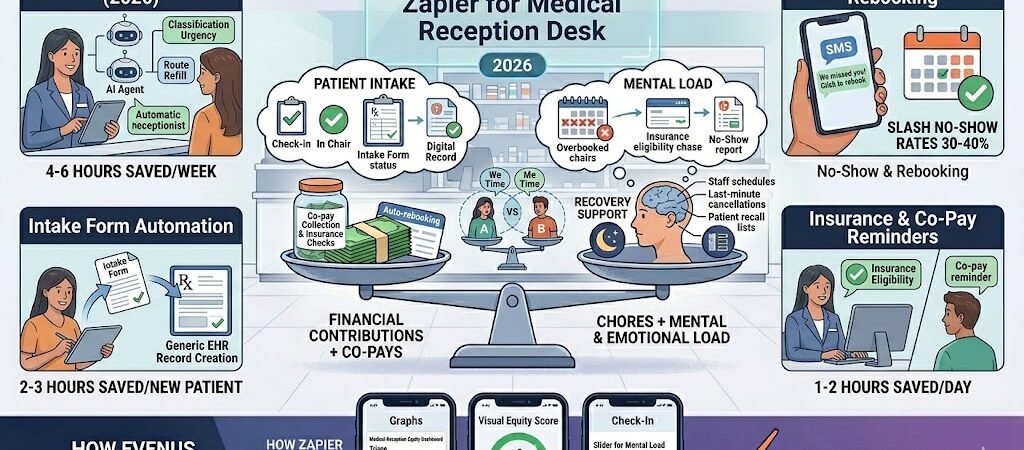
Save 10–15 hours per week, slash no-show rates by 30–40 %, and turn chaotic patient intake into a smooth, automated process — without adding more staff.
Medical receptionists in 2026 are the true front line of every practice. Yet most still spend 10–15 hours every week manually triaging appointment requests, chasing no-shows, and entering patient intake forms by hand (MGMA 2026 Practice Operations Report). Phone lines stay busy, waitlists go unmanaged, and new patients wait days for their paperwork to be processed.
The result? Overbooked or empty slots, frustrated patients, higher no-show rates, and burned-out reception teams who have little time left for actual patient interaction.
Zapier + AI Agents changes that completely. In this complete 2026 blueprint you’ll get exact step-by-step Zaps that automate appointment triage, no-show reminders, and patient intake for Athenahealth, Epic, Cerner, eClinicalWorks, NextGen, or any modern EHR/PM system.
Why Medical Receptionists Should Use Zapier in 2026 (Zapier for Medical Receptionists )
Here’s what most medical receptionists are still doing manually every single day in 2026:
- Triaging dozens of appointment requests coming in via phone, patient portal, email, and online forms — often juggling multiple systems at once.
- Chasing no-shows and last-minute cancellations with individual phone calls or manual texts.
- Entering repetitive patient intake forms, insurance details, and demographics by hand.
- Managing waitlists, rescheduling, and overbooking without real-time visibility.
- Spending hours verifying insurance eligibility and collecting co-pays before appointments.
According to the MGMA 2026 Practice Operations Report, the average medical receptionist loses 10–15 hours per week on these repetitive tasks. High no-show rates (often 15–25 %) and slow intake processes continue to create bottlenecks that reduce daily patient throughput and increase staff burnout.
With Zapier you can finally:
- Automatically triage and route appointment requests in seconds.
- Send smart no-show reminders and instantly offer waitlist slots.
- Process new patient intake forms without any manual data entry.
- Keep the entire schedule updated in real time and reduce no-shows by 30–40 %.
- Cut daily admin work dramatically while staying HIPAA-safe.
Popular medical software that connects seamlessly with Zapier includes Athenahealth, Epic, Cerner, eClinicalWorks, NextGen, and Practice Fusion. You can also link Twilio or SMS by Zapier for reminders, Google Forms or Zapier Forms for intake, QuickBooks for billing, and Zapier Tables for live dashboards.
Medical receptionists who implement these automations report less phone tag, smoother patient flow, happier providers, and more time for the human side of their job.
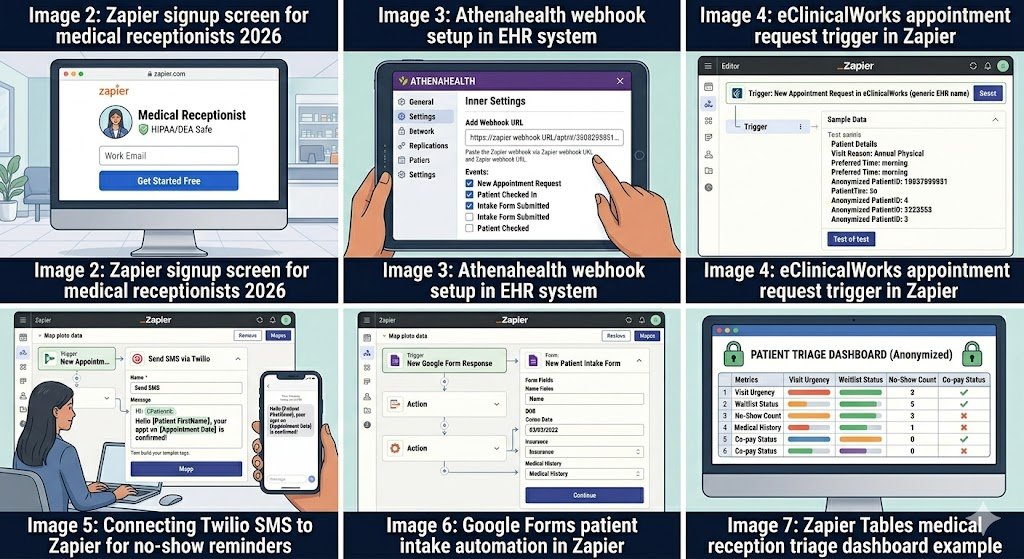
How to Connect Your Medical Software to Zapier (Step-by-Step)
Setting up Zapier for your medical practice takes 15–30 minutes for the first Zap — no coding or IT help required.
Step 1: Create Your Zapier Account
- Go to zapier.com and sign up with your work email.
- Verify your email address.
- Start with the Professional plan ($29.99/month billed annually) — this gives you enough tasks for a busy medical reception desk. The free plan is perfect for testing your first few Zaps.
Step 2: Connect Your Medical Software / EHR System
Most medical systems (Athenahealth, Epic, Cerner, eClinicalWorks, NextGen, Practice Fusion) connect easily using one of these three methods:
- Method A – Webhooks (Recommended) In your EHR/PM system settings, enable webhook notifications for events like “New Appointment Request”, “Patient Checked In”, “No-Show”, or “Intake Form Submitted”. Copy the unique Zapier webhook URL and paste it into your software.
- Method B – Email Parser (Super Easy) If your system sends confirmation or intake emails, use Zapier’s built-in Email Parser to automatically pull patient name, appointment time, reason for visit, and insurance details.
- Method C – Google Forms / Zapier Tables Bridge Use online intake forms that feed directly into Zapier Tables or Google Sheets → Zapier watches for new rows.
Pro tip: Start with Webhooks or Email Parser — they are the fastest and most reliable for medical reception workflows.
Step 3: Connect Your Supporting Apps
Once your medical software is connected, add these common tools (all have native Zapier integrations):
- Twilio or SMS by Zapier → for no-show reminders and confirmation texts
- Google Calendar or Outlook → for real-time schedule visibility
- Google Forms or Zapier Forms → for digital patient intake
- QuickBooks Online → for co-pay and billing notes
- Zapier Tables → for live triage dashboards and waitlist tracking
Step 4: Set Up HIPAA-Safe Workflows (Critical in 2026)
Important: Zapier itself is not HIPAA compliant and does not sign a BAA. Safe practice: Only send non-PHI data (appointment times, visit reason codes, anonymized totals, no-show counts). Keep all patient names, medical history, and clinical notes inside your EHR system.
Total time for first Zap: 15–30 minutes. You can have your first automation (e.g., no-show reminder or intake form processing) running the same day.
Here is Section 4 exactly as it should appear in your published article (copy-paste ready):
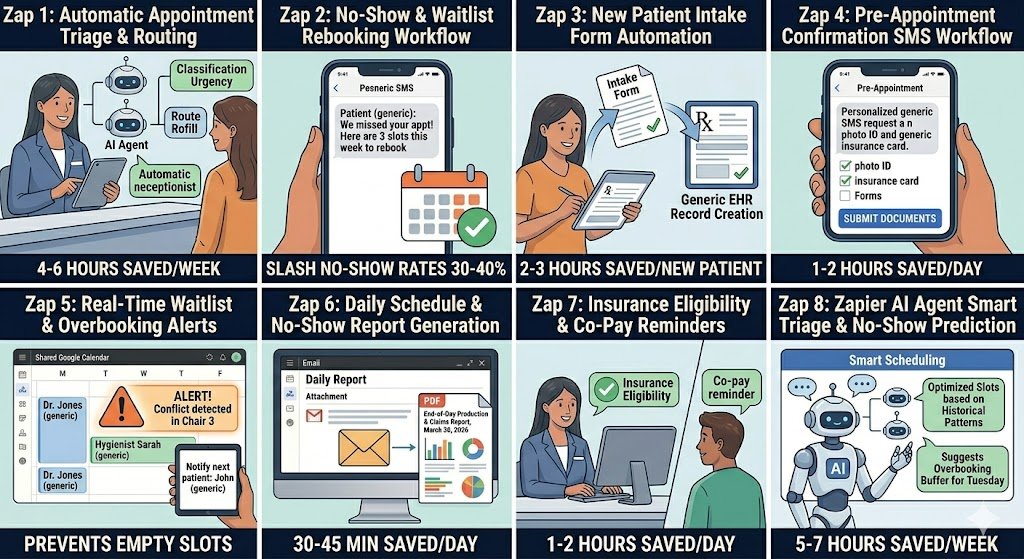
8 Powerful Medical Receptionist Automations You Can Build Today
These are the exact Zaps that medical receptionists are using in 2026 to cut 10–15 hours of manual work every week. Each one includes the trigger, actions, time saved, and a practical edge case.
1. Automatic Appointment Triage & Routing Trigger: New appointment request received via phone system, patient portal, or online form Action: Zapier AI Agent classifies urgency + routes to correct provider calendar + sends instant confirmation SMS Time saved: 4–6 hours per week on manual triage calls. Edge case: For urgent or same-day requests, automatically escalate to a live receptionist via Slack. (Screenshot: AI triage decision + calendar routing)
2. No-Show & Cancellation Auto-Reminder + Waitlist Rebooking Trigger: Appointment status = No-Show or Cancelled Action: Send personalized SMS reminder + automatically offer next 3 available slots to waitlisted patients Time saved: Reduces no-show rate by 30–40 % and recovers lost slots daily. Edge case: Use Zapier AI to personalize the message based on patient history (e.g., “We noticed you missed your follow-up — here are 3 open slots this week”). (Screenshot: No-show trigger + waitlist rebooking flow)
3. New Patient Intake Form Automation Trigger: New patient submits online intake form (Google Forms or Zapier Forms) Action: Auto-create patient record in EHR + send welcome packet + add to schedule + notify front desk Time saved: 2–3 hours per new patient (no more manual data entry). Edge case: Route high-priority patients (e.g., new Medicare or workers’ comp) to a special intake queue. (Screenshot: Intake form trigger + EHR record creation)
4. Pre-Appointment Confirmation & Document Request Trigger: Appointment booked (48 hours before) Action: Send SMS/email asking for insurance card photo + photo ID + any required forms Time saved: 1–2 hours per day on confirmation calls. Edge case: If documents are missing, automatically move the appointment to “Pending” status. (Screenshot: Pre-appointment confirmation SMS)
5. Real-Time Waitlist & Overbooking Alerts Trigger: Appointment cancelled or no-show detected Action: Check waitlist in Zapier Tables + notify next patient + auto-book the slot Time saved: Prevents empty slots and maximizes daily revenue. Edge case: Add a Filter so only patients who match the cancelled appointment type (e.g., annual physical) are contacted. (Screenshot: Waitlist alert + auto-booking)
6. Daily Schedule & No-Show Report Generation Trigger: End of business day (Schedule by Zapier) Action: Pull schedule data + generate PDF report of no-shows and production → email to office manager Time saved: 30–45 minutes every single day. Edge case: For multi-provider offices, split the report by doctor automatically. (Screenshot: Daily report PDF generation)
7. Insurance Eligibility & Co-Pay Reminder Trigger: Appointment booked (24 hours before) Action: Check insurance eligibility via EHR + send patient a co-pay reminder SMS Time saved: 1–2 hours per day on eligibility calls. Edge case: For cash-pay or high-deductible patients, route to a special billing note. (Screenshot: Insurance check + co-pay SMS)
8. AI-Powered Smart Triage & No-Show Prediction (2026 Game-Changer) Trigger: New appointment request or schedule change Action: Zapier AI Agent analyzes historical no-show patterns + predicts risk level + suggests optimal slot + requires human approval for high-risk bookings Time saved: 5–7 hours per week on manual scheduling decisions. Edge case: AI confidence below 80 % automatically flags the request for receptionist review. (Screenshot: AI Agent triage dashboard + risk prediction)
These 8 Zaps create a complete front-desk automation system that turns chaotic reception work into a calm, efficient process.
HIPAA Compliance & Security Best Practices
Important 2026 note: Zapier itself is not HIPAA compliant and does not sign a Business Associate Agreement (BAA). This means you must never send Protected Health Information (PHI) — such as patient names, medical history, treatment details, insurance numbers, or dates of birth — through Zapier.
Safe and compliant way to use Zapier at the reception desk:
- Only automate non-PHI data: appointment times, visit reason codes, no-show counts, anonymized totals, or waitlist status.
- Keep all actual patient records, clinical notes, and full demographics inside your EHR system (Athenahealth, Epic, Cerner, eClinicalWorks, etc.).
- Use Zapier Tables (encrypted at rest) only for anonymized dashboards, waitlist tracking, or daily no-show reports.
- For patient reminders and confirmations, use anonymized triggers (e.g., “Appointment #3842 confirmed” instead of patient name).
Recommended security setup:
- Enable two-factor authentication on every Zapier account.
- Limit Zap access to only the reception team and office manager.
- Turn on “Require approval before turning on new Zaps” in team settings.
- For any workflow that must touch PHI, use a true HIPAA-compliant tool like Workato, Tray.io, or HIPAAtizer as a secure bridge.
By following these practices, medical receptionists can safely enjoy the time-saving power of Zapier while remaining fully compliant with HIPAA, state privacy laws, and insurance audit requirements.
Pricing & Limits for Medical Receptionists
A typical 2–4 provider medical practice runs comfortably on Zapier’s Professional plan without hitting limits. Here’s the 2026 pricing breakdown:
| Plan | Monthly Cost (billed annually) | Tasks per Month | Best For Medical Reception Teams |
|---|---|---|---|
| Free | $0 | 100 | Testing 1–2 simple Zaps only |
| Professional | $29.99 | 750 | Most 2–4 provider offices (recommended starting plan) |
| Team | $103.50 | 2,000+ | Larger or multi-location practices |
Real-world cost example: A busy 2–4 provider medical office (80–150 appointments + intake forms + reminders per day) typically uses 480–650 tasks per month after adding smart Filters, daily Digests, and AI Agents for triage. This fits easily inside the $29.99 Professional plan.
Pro tip: You can cut task usage another 40–60 % by using Zapier AI Agents for appointment triage and switching high-volume reminders to daily batch reports instead of instant triggers.
Common Errors & Quick Fixes
Even the best medical reception automations can hit a snag. Here are the most common issues medical receptionists face in 2026 and exactly how to fix them fast:
1. Authentication Error with EHR System Problem: Zapier suddenly shows “Authentication failed” with Athenahealth, Epic, Cerner, or eClinicalWorks. Fix: Reconnect using a fresh API key or webhook URL from your EHR settings (this happens after software updates). Takes under 60 seconds.
2. Duplicate No-Show Reminder Messages Problem: Patients receive the same reminder multiple times. Fix: Add a Filter by Zapier step that checks Zapier Tables or a Google Sheet to see if a reminder was already sent for that appointment ID.
3. Intake Form Data Not Mapping Correctly Problem: Patient name, date of birth, or insurance details appear as “null” or in the wrong fields. Fix: Use Formatter by Zapier → Text to clean the data, or switch from email parsing to a direct Google Form / Zapier Form trigger for more reliable field mapping.
4. Rate Limit Spikes During Peak Hours Problem: You hit your task limit on busy Monday mornings or after lunch. Fix: Switch high-volume reminders and triage Zaps to daily Digests instead of instant triggers, or add a short Delay by Zapier (5–10 seconds). Most offices cut usage by 40–60 % this way.
5. AI Agent Triage Misclassifying Appointments Problem: The AI Agent flags routine follow-ups as “urgent” or vice versa. Fix: Lower the confidence threshold to 75 % or add a mandatory human-in-the-loop approval step for any request the AI rates below 85 % confidence.
Conclusion & Next Steps
You no longer have to spend 10–15 hours every week triaging appointments, chasing no-shows, and entering patient intake forms by hand.
With these 8 practical Zaps (plus the AI-powered smart triage version), medical receptionists are dramatically reducing no-show rates by 30–40 %, speeding up patient intake, and creating much smoother, less stressful front-desk operations.
The best part? You can have your first automation (no-show reminders or intake form processing) running the same day you build it.
Ready to transform your reception desk today? Build your first Zap in under 5 minutes → Start Free on Zapier
Want the complete ready-made template pack? Reply “MEDICAL RECEPTION TEMPLATES” in the comments or visit our homepage and I’ll send you all 8 Zaps as importable links (completely free).
Looking for a more affordable long-term solution? Many medical practices are switching to Make.com for high-volume triage and reminders. Want the Make.com version of these blueprints? Just let me know.
Automate once. Spend more time helping patients and less time fighting admin chaos.
Ready to automate your medical reception desk and reclaim 10–15 hours every week?
Explore hundreds more practical Zapier blueprints for medical offices and US professionals on our homepage: practicalaismb.com
For the latest industry data used in this guide, check these trusted sources:
- MGMA 2026 Practice Operations Report
- ADA Health Policy Institute – Practice Survey 2026
- Zapier Official Integration Directory

About the Author
Aapt DubeyAapt Dubey is an automation specialist and software developer dedicated to eliminating manual workflows for small businesses. With deep, hands-on experience building complex Zapier integrations, API connections, and real-world applications, Aapt writes actionable, tested tutorials to help businesses scale efficiently.