Key Takeaways: Zapier for Independent Architects
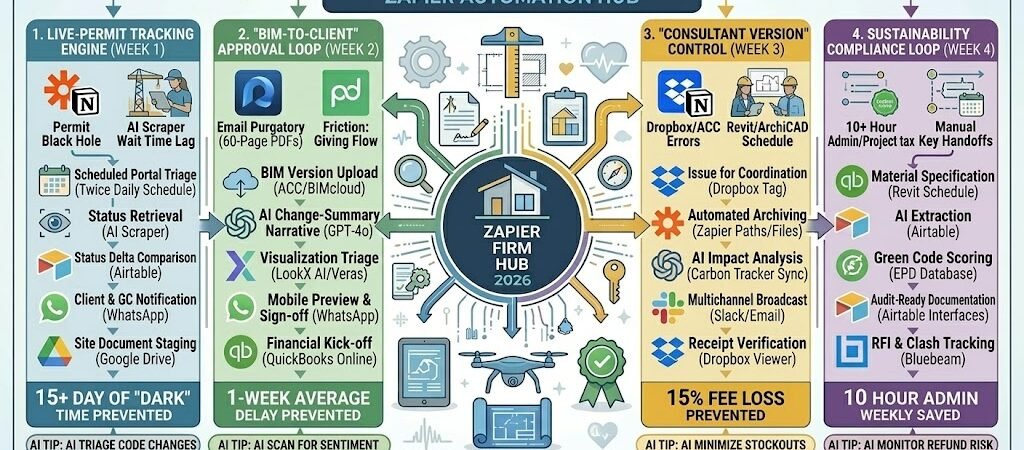
- The “Blueprint-to-Review” Sync: Connect Bluebeam Revu or AutoCAD to Dropbox. The moment a drawing is saved as “Final,” Zapier triggers an AI-generated “Change Log” summary for the client and contractor.
- The “One-Tap” Design Sign-off: Link Morpholio Trace or Revit to WhatsApp. Send high-res 3D walkthrough links to clients with an integrated “Approve Schematic” button that instantly triggers the next billing phase.
- The “Permit Watchdog”: Connect Google Sheets (tracking permit IDs) to AI by Zapier. Have the AI check local government planning portals daily and ping you on Slack the second a status changes from “Pending” to “Approved.”
- The “Sustainability Compliance” Loop: Automate the extraction of material specs from vendor PDFs into your Airtable “Carbon Tracker,” ensuring your 2026 green-code documentation is always audit-ready.
The “Architectural Friction” of 2026
In 2026, the independent architect is no longer just a designer of spaces; they are a “Regulatory Diplomat.” With the widespread adoption of the “2026 Green Building Mandates” and the push for “Digital Twin” submissions, the complexity of moving a project from concept to groundbreaking has doubled. For a boutique firm, the primary threat to profitability isn’t a lack of structural ingenuity; it’s “Coordination Drag.”
Independent architects in 2026 are currently navigating three critical “Frictions”:
- The “Permit Black Hole”: Municipal planning offices have moved to digital portals, yet they remain notoriously opaque. Architects lose 5+ hours a week manually logging into various government sites to check the status of “Zoning Variances” or “Building Permits.” This “Silent Latency” stalls the entire project team—contractors, engineers, and clients—creating a ripple effect of scheduling delays and cost overruns.
- The “Consultant Versioning” Chaos: In 2026, a single residential project can involve up to seven different consultants (Structural, MEP, Sustainability, Landscape, etc.). The friction occurs when the Structural Engineer is calculating loads based on “v2” while the Architect has already moved to “v4” to accommodate a client’s window change. This “Data Misalignment” leads to “Field Corrections” that can eat 15% of an architect’s fee in unbillable rework.
- The “Sustainability Compliance” Burden: New 2026 regulations require granular documentation of embodied carbon and energy performance for every material specified. Manually extracting R-values and carbon scores from vendor PDFs and re-keying them into compliance software is a 10-hour-per-project administrative tax. Without automation, the “Green Mandate” becomes a profit-killer for the independent practitioner.
The Zapier Solution: Zapier acts as your “Technical Project Lead,” seamlessly connecting your Revit/ArchiCADexports, your Airtable material library, and the local Planning Portals. By 2026, a high-performing architect doesn’t “check” on a permit; Zapier has already scraped the portal and updated the project Slack. You don’t “distribute” drawings; Zapier has already synced the latest set to the entire consultant team.
Architecture Efficiency Benchmarks 2026
| Friction Category | 2026 Impact | Zapier Automation Fix |
| Permit Tracking | 15+ Days of “Dark” Time | Automated Portal Scraping & Instant Alerts |
| Versioning Errors | 15% Fee Loss on Rework | Instant “Latest-Set” Broadcast to Consultants |
| Code Compliance | 10+ Hours Admin/Project | AI Extraction of Material Specs from PDFs |
Practical AI Tip for 2026: Use AI by Zapier to “Triage Code Changes.” Have Zapier monitor your city’s planning department RSS feed. If the AI detects a change in “Setback Requirements” or “Solar Mandates” for your project’s specific PIN/Zone, it can send an immediate alert: “Warning: New Solar Shade regulation passed for Zone B-2. Review South Elevation for compliance.”
Blueprint #1 – The “Live-Permit” Tracking Engine
In 2026, the “Permit Phase” is the most significant bottleneck in the project lifecycle. While you have no control over the speed of government bureaucracy, you have total control over your response time. This blueprint eliminates the manual “refresh” cycle of municipal portals, ensuring that the second a permit status moves, your team and clients are notified, and the construction schedule is activated.
1. The Trigger: The “Scheduled Portal Triage”
- The 2026 Tech: A Zapier Schedule runs twice daily (at 8:00 AM and 1:00 PM).
- The Action: Zapier triggers a workflow for every “Active Permit” record currently stored in your Airtable or Monograph project dashboard.
2. The Logic: The AI-Powered Portal Scraper
Zapier acts as your Digital Permit Clerk, navigating the often-clunky government interfaces:
- The Search & Scrape: AI by Zapier (Browser Tool) visits the municipal planning portal, enters the specific permit or application ID, and captures the current status (e.g., “Under Review,” “Awaiting Correction,” or “Issued”).
- The Status Comparison: Zapier compares this new data against the “Previous Status” field in Airtable.
- The Priority Filter: If the status has moved to “Issued” or “Approved with Conditions,” it moves to the high-priority action branch.
3. The Action: The “Groundbreak” Mobilization
- The Internal Alert: Zapier pings the Architect’s Apple Watch Ultra 3 and your firm’s Slack channel: “Permit Cleared: [Project Address] is officially Approved. Notification sent to Client and GC.”
- The External Broadcast: Zapier sends a WhatsApp to the Client and the General Contractor (GC): “Great news! The permit for [Project Name] has been issued. [GC Name], please confirm the site mobilization date. [Client Name], we are ready to build!”
- The Folder Update: Zapier creates a new sub-folder in Google Drive named “APPROVED_PERMITS” and moves the digital certificate there for the site team to access.
Live-Permit Tracking Summary
| Step | Component | 2026 Recommended Tool |
| Trigger | Twice-Daily Schedule | Zapier Schedule |
| Logic 1 | Portal Status Retrieval | AI by Zapier (Browser) |
| Logic 2 | Status Delta Comparison | Airtable |
| Action 1 | Client & GC Notification | WhatsApp / Twilio |
| Action 2 | Site Document Staging | Google Drive |
Practical AI Tip for 2026: Use AI by Zapier to “Interpret Correction Comments.” If the portal status is “Corrections Required,” have the AI extract the specific comments (e.g., “Missing egress detail on A-2.1”) and create a high-priority task in monday.com for your junior architect to address before your morning stand-up.
Blueprint #2 – The “BIM-to-Client” Approval Loop
In 2026, the traditional 60-page PDF report is a relic of the past. High-end clients and developers now expect “Digital Twin” transparency—the ability to interact with a model and sign off on design phases with a single tap on their phone. This blueprint eliminates the “Email Purgatory” that stalls projects during the Schematic Design (SD) and Design Development (DD) phases.
1. The Trigger: The “Milestone Model” Upload
- The 2026 Tech: You finalize a design iteration and save the latest set or 3D model to Autodesk Construction Cloud (ACC) or Graphisoft BIMcloud.
- The Action: Zapier detects a “New Version” or “New Attachment” in your specific project folder. It pulls the project name, the client’s mobile number, and the secure viewing link (e.g., a BIMx or Autodesk Viewer URL).
2. The Logic: The AI Design Storyteller
Zapier acts as your Digital Associate Architect, preparing the presentation layer:
- The Change Log Summary: AI by Zapier compares your internal “Revisions” list with previous versions and drafts a bulleted summary of what’s new (e.g., “1. Optimized window placement for passive solar gain, 2. Expanded kitchen island by 18 inches”).
- The Permission Sync: Zapier verifies that the client has signed the latest “Phase Agreement” in PandaDoc. If not, it pauses and sends the agreement first.
- The Visual Triage: If you’ve uploaded a 3D render, Zapier triggers LookX AI to generate a “Styled Concept” (e.g., “Photo-real: Dusk Lighting”) to give the client a high-impact preview.
3. The Action: The “One-Tap” Sign-off
- The Mobile Delivery: Zapier sends a WhatsApp to the Client: “Hi [Name]! The Schematic Design for the [Project Name] is ready for your review. View the interactive 3D model here: [Link]. Happy with this direction? Tap ‘Approve’ to lock in this phase and move to Construction Docs.”
- The Instant Pivot: When the client taps “Approve,” Zapier:
- Updates the project status to “Design Approved” in Monograph or monday.com.
- Sends a congratulatory Slack message to your team: “Bay Project SD Approved! Billing Phase 2 initiated.”
- Triggers your 2026 QuickBooks to send the Phase 2 deposit invoice.
BIM-to-Client Approval Summary
| Step | Component | 2026 Recommended Tool |
| Trigger | BIM Version Upload | Autodesk Construction Cloud / BIMcloud |
| Logic 1 | Narrative Generation | AI by Zapier (GPT-4o) |
| Logic 2 | Visualization Triage | LookX AI / Veras |
| Action 1 | One-Tap Sign-off | WhatsApp (Custom API) |
| Action 2 | Financial Kick-off | QuickBooks Online |
Practical AI Tip for 2026: Use AI by Zapier to “Scan for Sentiment.” If a client replies to the WhatsApp with something like “I’m not sure about the material on the deck,” Zapier can automatically flag that specific item as an “Open Issue” in your Bluebeam Studio Session, ensuring you don’t forget to address it in the next meeting.
Blueprint #3 – The “Consultant Version” Control
In 2026, the biggest liability for an independent architect is a “Data Delta”—when a consultant designs a system based on an outdated drawing set. Whether it’s an MEP engineer placing a vent where you’ve just moved a skylight or a Structural engineer calculating loads for a wall you’ve deleted, versioning errors lead to costly Change Orders. This blueprint ensures your entire consultant team is always working on the “Single Source of Truth.”
1. The Trigger: The “Issue for Coordination” Tag
- The 2026 Tech: You save a new drawing set to your “Consultant Shared” folder in Dropbox or Autodesk Construction Cloud and tag the folder with “LATEST_COORD.”
- The Action: Zapier detects the tag change or the new file upload. It pulls the project ID and the “Consultant Roster” from your project base.
2. The Logic: The Automated Document Controller
Zapier acts as your Document Control Manager, eliminating the manual “Send to All” email chains:
- The Version Archiving: Zapier automatically moves the previous set in the consultant’s folder to an “ARCHIVED” sub-folder with a timestamp, ensuring they can’t accidentally open the wrong file.
- The AI Change-Summary: AI by Zapier scans your Revit/ArchiCAD revision clouds or your internal “Sheet List” and generates a “Consultant Impact List” (e.g., “Structural: Foundation wall moved 2′ South at Grid A. MEP: Kitchen island plumbing shifted 12″.”).
- The Permission Lockdown: Zapier resets the “Viewer” permissions on the old files and grants “Download” access to the new set.
3. The Action: The “Broadcast to Team” Sync
- The Team Notification: Zapier sends an automated Slack or email broadcast to the Structural, MEP, and Landscape engineers: “The 100% Design Development Set for [Project Name] is now live. Action Required: Please sync your models by Friday. Impact Summary: [AI Summary].”
- The Confirmation Nudge: If a consultant hasn’t downloaded the new set within 48 hours, Zapier sends a follow-up: “Hi [Consultant Name], just a reminder that the latest coordination set for [Project Name] hasn’t been accessed yet. Please ensure your team is on the current version.”
Consultant Version Control Summary
| Step | Component | 2026 Recommended Tool |
| Trigger | File Tag/Upload | Dropbox / Autodesk Construction Cloud |
| Logic 1 | Automated Archiving | Zapier Path / Files |
| Logic 2 | AI Impact Analysis | AI by Zapier (GPT-4o) |
| Action 1 | Multichannel Broadcast | Slack / Email / WhatsApp |
| Action 2 | Receipt Verification | Zapier Manager / Dropbox |
Practical AI Tip for 2026: Use AI by Zapier to “Scan Consultant Redlines.” When a Structural engineer uploads their marked-up PDF back to the portal, have the AI extract their comments and create a “Clash Detection” list in monday.com, so you can resolve structural conflicts before the client meeting.
The 2026 Architect Tech Stack
In 2026, the independent firm is defined by “Integrated BIM (Building Information Modeling).” As 3D model accuracy becomes the legal standard for permits and sustainability audits, your competitive edge is your firm’s “Data Velocity.” The 2026 standard is a “Live Project Environment” where the drawing set isn’t a static document, but a constantly syncing digital twin.
1. The 2026 Core Stack
| Function | 2026 Recommended Tool | Why It Wins in 2026 |
| BIM / Design | Revit / ArchiCAD | The industry “Language.” High-fidelity data exports allow Zapier to automate material carbon tracking and permit-ready sheet sets. |
| Project Mgmt | Monograph / monday.com | Monograph is the 2026 favorite for tracking “Phase Profitability” and “Burn Rates” specifically for design-billable hours. |
| Review & Markup | Bluebeam Revu | The standard for digital redlining. Zapier connects Bluebeam Studio to your PM tool to track contractor RFIs in real-time. |
| AI Rendering | Veras / LookX AI | Veras integrates directly into your BIM window, turning a basic model into a photorealistic render in under 15 seconds for instant client WhatsApp previews. |
| Document Control | Autodesk Construction Cloud | Provides the secure, version-controlled “Single Source of Truth” that consultants and contractors rely on to avoid field errors. |
2. The 2026 “Architecture Engine” Circuitry
In 2026, Zapier acts as your “Digital Document Controller,” ensuring your creative focus isn’t diluted by file management:
- The “Permit-to-Calendar” Circuit: Connect your Municipal Portal (via AI Scraper) to Monograph. When a permit status hits “Approved,” Zapier automatically shifts your “Construction Admin” phase start date and notifies the GC.
- The “Spec-to-Carbon” Circuit: Link your Revit Schedule to Airtable. As you select materials, Zapier pulls EPD (Environmental Product Declaration) data to calculate your 2026 Green Code compliance score automatically.
- The “One-Tap Sign-off” Circuit: Link Bluebeam Revu to WhatsApp. Once a set is “Client Ready,” Zapier generates a mobile-optimized viewing link and a “Digital Signature” request via PandaDoc.
3. Hardware for the 2026 “Agile Firm”
- “Digital Twin” Field Tablet: The iPad Pro 13-inch (M4) is the gold standard for site visits. With LiDAR scanning, you can capture “As-Built” conditions and have Zapier push the point-cloud data directly into your Revitcloud folder.
- Haptic Review Pen: The Apple Pencil Pro allows you to “redline” digital blueprints with tactile feedback. Zapier captures these markups and creates tasks in Slack for your drafting team.
- High-Lumen Mobile Projector: Tools like the Samsung Freestyle 2 allow you to project 1:1 scale details onto a job site wall. Zapier ensures the most recent “Revision” is the one being projected.
Conclusion: Your 30-Day “Firm Mastery” Roadmap
- Week 1: The Single Source. Connect your BIM cloud to Dropbox or Drive to ensure your consultants always have the “Latest Coordination Set” without you sending a single email.
- Week 2: The Permit Watchdog. Set up a Zap to scrape your local planning portal; stop the manual check-ins and start getting “Approval Alerts” on your watch.
- Week 3: The Mobile Sign-off. Move your client approvals to WhatsApp. Send a 3D render link and a “Tap to Approve” button to keep your project phases moving at 2026 speed.
- Week 4: The AI Spec Assistant. Use AI by Zapier to extract material data from vendor PDFs, automating your sustainability and code-compliance documentation.

About the Author
Aapt DubeyAapt Dubey is an automation specialist and software developer dedicated to eliminating manual workflows for small businesses. With deep, hands-on experience building complex Zapier integrations, API connections, and real-world applications, Aapt writes actionable, tested tutorials to help businesses scale efficiently.