Key Takeaways: Zapier for Graphic Designers
- The “Smart-Brief” Filter: Use Zapier to instantly score and categorize design inquiries based on budget and complexity.
- Version-Control Automation: Automatically rename and sync design files from Adobe Creative Cloud to client-facing Dropbox folders.
- Revision-to-Task Sync: Convert feedback from Figma or Adobe Share directly into prioritized tasks in Asana or Trello.
- The “Payment-Gated” Handover: Trigger the release of high-res source files only after the final Stripe or QuickBooks invoice is settled.
The “Feedback Fatigue” of 2026
In 2026, the graphic design landscape has split into two worlds: the high-speed demand for “Instant Content” and the high-value world of “Strategic Branding.” Regardless of which side you play on, the primary threat to your profitability is Feedback Fatigue. As clients become accustomed to the speed of generative AI tools, their expectations for iteration cycles have hit an all-time high, often leaving designers stuck in a loop of administrative back-and-forth rather than actual creation.
By 2026, a freelance designer’s “Profit Margin” is eroded by three specific operational “Leaks”:
- The “Asset Scavenger Hunt”: Designers lose an average of 5 hours per project simply chasing clients for high-res logos, brand fonts, or the actual copy for the design. In 2026, starting a project without a complete “Asset Kit” isn’t just an annoyance—it’s a workflow killer that pushes your delivery dates back and stalls your cash flow.
- The “Ambiguous Feedback” Trap: Despite the advanced tools of 2026, designers still face the dreaded “Can we make it pop?” or “I’ll know it when I see it” feedback. Without a system to capture, categorize, and pin feedback to specific pixels, designers spend 30% of their time on “Guesswork Revisions” that should have been solved in a single pass.
- The Revision “Version Hell”: In a rapid-fire design environment, managing
Logo_Final_v2_UPDATED_ActualFinal.aiis a liability. Manually syncing files between your design software and client-facing folders leads to “Version Mismatch,” where a client approves one version but you send the source files for another.
The Zapier Solution: Zapier acts as your “Virtual Design Operations Manager.” It bridges the gap between your creative canvas (Figma, Adobe Creative Cloud, or Canva) and your project management suite. By 2026, an automated designer doesn’t “start” a project; Zapier has already audited the client brief for missing assets and created the Figmaworkspace the moment the deposit was paid. You don’t “track” revisions; Zapier has already converted every MarkUp.iocomment into a prioritized task in Asana, tagged by its level of urgency.
Practical AI Tip for 2026: Use AI by Zapier to “Interpret the Brief.” Have Zapier scan the client’s adjectives in their intake form (e.g., “minimalist,” “bold,” “corporate”). The AI can automatically generate a 3-word “Vibe Check” and a suggested color palette based on 2026 trends, pinning it to your project board before you even open your first artboard.
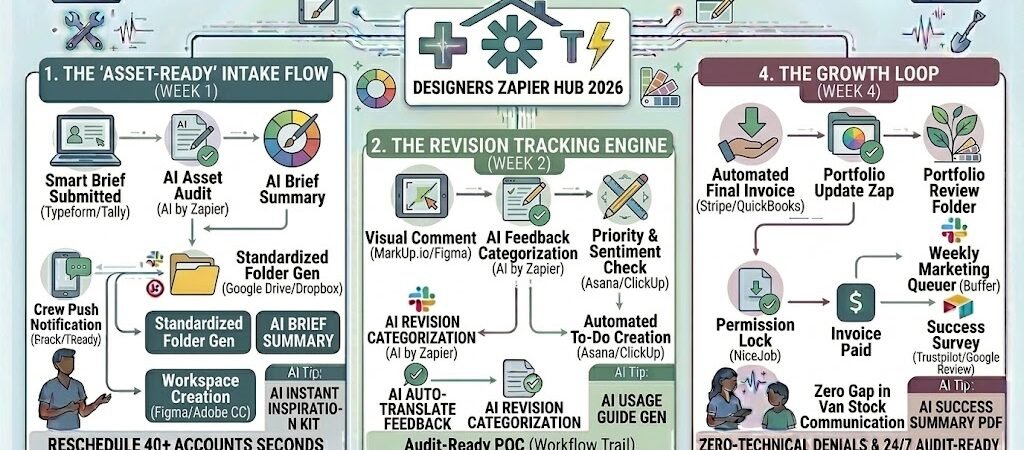
Blueprint #1 – The “Asset-Ready” Intake Flow
In 2026, the “Professionalism Gap” is determined by how you handle the first 10 minutes of a project. Starting a design with a missing logo or a blurry reference image isn’t just frustrating—it’s a signal to the client that your process is disorganized. This blueprint uses Zapier to ensure that by the time you sit down to create, every asset, brand guideline, and project folder is already perfectly staged.
1. The Trigger: The “Smart-Brief” Submission
- The 2026 Tech: A client completes your 2026-optimized intake form (Typeform, Tally, or Paperform).
- The Action: Zapier catches the submission. Crucially, your form requires a “Brand Asset Upload” or a “Google Drive Link” to proceed.
2. The Logic: The AI Asset Audit & Workspace Deployment
Zapier acting as your Design Ops Lead, checking the “suitability” of the project before it hits your calendar:
- The Asset Audit (AI by Zapier): Zapier sends the attached files to an AI node. The AI checks if the images are high-res (e.g., above 2000px) and if the “Logo” file is a vector format (.svg, .ai, .eps).
- The “Asset Chaser” Loop: If files are missing or low-quality, Zapier triggers a “Wait & Nudge” sequence: “Hi [Client]! I’ve received your brief, but the logo file you uploaded is low-res. Could you please upload the vector (.ai or .svg) version here so we can keep the schedule on track?”
- The Directory Generation: Once assets are verified, Zapier creates a standardized folder in Google Drive or Dropbox:
/Project_Name / 01_Client_Assets / 02_Work_In_Progress / 03_Final_Exports.
3. The Action: The “Canvas Creation”
- The Figma/Adobe Sync: Zapier triggers a script (or a Figma plugin action) to create a new project file named after the client.
- The Project Management Sync: A new card is created in Asana or Trello with a “To-Do” checklist pre-populated with your design stages (Moodboard, V1, Revisions, Final).
- The Result: You open your computer to find a Slack notification: “🚀 Brief Approved. Files Verified. Figma Canvas Ready.”
Summary: The Asset-Ready Intake Zap
| Step | Component | 2026 Recommended Tool |
| Trigger | Brief Submission | Typeform / Tally |
| Logic 1 | AI Resolution & File Check | AI by Zapier |
| Logic 2 | Automatic Folder Gen | Google Drive / Dropbox |
| Action 1 | Workspace Creation | Figma / Adobe CC |
| Action 2 | Designer Notification | Slack / Microsoft Teams |
Practical AI Tip for 2026: Use AI by Zapier to “Auto-Moodboard.” Based on the keywords in the brief (e.g., “cyberpunk,” “organic,” “high-end”), have Zapier search Unsplash or Pinterest via API to pull 5 reference images into your project folder. This gives you an “Instant Inspiration” kit the moment you start.
Blueprint #2 – The Revision Tracking Engine
In 2026, the “Revision Loop” is where most design projects lose their profitability. Manually transcribing client feedback from emails, PDFs, or scattered Slack messages into your task manager is a “hidden” labor cost that can eat up 20% of your billable hours. This blueprint uses Zapier to turn your design canvas into a live, two-way feedback bridge, ensuring every “Can we make this blue?” becomes an actionable task without you lifting a finger.
1. The Trigger: The “Pixel-Pinned” Comment
- The 2026 Tech: Your client uses a visual feedback tool like MarkUp.io, Pastel, or the native comment feature in Figma.
- The Action: The client clicks a specific element on your design and leaves a comment. Zapier detects this “New Comment” event instantly.
2. The Logic: AI Feedback Triage
Zapier acts as your Creative Producer, interpreting the client’s language before it hits your to-do list:
- The Sentiment & Urgency Check (AI by Zapier): The AI scans the comment. If it detects words like “typo,” “emergency,” or “wrong logo,” it flags the task as Priority: High.
- The Category Tagging: The AI categorizes the feedback (e.g., “Color,” “Typography,” “Layout,” or “Copy Edit”). This allows you to batch similar tasks together—handling all “Color” changes across 10 artboards in one go.
- The Task Generator: Zapier creates a new sub-task in Asana, ClickUp, or Notion. The task description includes a direct link to the exact pixel location of the comment.
3. The Action: The “Acknowledgment” Loop
- The Client Confirmation: Zapier sends an automated Slack or WhatsApp notification to the client: “Got it! Your feedback on the ‘Hero Section’ has been added to my queue. I’m currently 80% through the V2 updates.”
- The Internal Alert: You receive a Slack notification in your
#design-feedchannel with a preview of the comment, so you can decide if it needs an immediate fix or a discovery call. - The Result: You eliminate “Version Mismatch” and ensure that no piece of feedback ever falls through the cracks.
Summary: The Revision Bridge Zap
| Step | Component | 2026 Recommended Tool |
| Trigger | New Visual Comment | MarkUp.io / Figma / Pastel |
| Logic 1 | AI Feedback Categorization | AI by Zapier |
| Logic 2 | Priority & Sentiment Labeling | AI by Zapier |
| Action 1 | Task Creation with Links | Asana / ClickUp / Notion |
| Action 2 | Client “Receipt” Notification | WhatsApp Business / Slack |
Practical AI Tip for 2026: Use AI by Zapier to “Auto-Translate Feedback.” If you are working with global clients, have Zapier translate their feedback into your native language before it hits your task manager. This prevents “lost in translation” errors that lead to wasted revision rounds.
Blueprint #3 – The “Paid-to-Download” Final Handover
In 2026, the “Professionalism Gap” is widest at the very end of a project. Sending a massive ZIP file via email and then “hoping” the final invoice gets paid is a 2024 liability. This blueprint turns your Final Handover into a secure, automated transaction. By using Zapier to gate your high-res source files behind a payment confirmation, you ensure your cash flow remains as sharp as your designs.
1. The Trigger: The “Design Approved” Status
- The 2026 Tech: You move the project card to “Approved” or “Ready for Handover” in your project management tool (Monday.com, Asana, or ClickUp).
- The Action: Zapier detects the status change and begins the “Finalization” sequence.
2. The Logic: The “Payment-Gated” Release
Zapier acts as your Digital Escrow Agent, managing the transition from “Work-in-Progress” to “Asset Delivery”:
- The Final Invoice Trigger: Zapier triggers QuickBooks, Stripe, or HoneyBook to generate and send the final balance invoice to the client.
- The Permission Lock: Zapier pings Dropbox or Google Drive to move the final assets into a “Delivery” folder, but keeps the permissions set to “View Only” (no download access).
- The Payment Watch: A second Zap “listens” for the “Invoice Paid” event from your payment processor.
3. The Action: The “Auto-Unlock” & Brand Kit Handover
- The Unlock: The micro-second the payment clears, Zapier updates the Dropbox/Google Drive folder permissions to “Editor” or “Can Download.”
- The “Launch Kit” Email: Zapier sends a branded email via Flodesk or Gmail containing:
- The link to their high-res source files.
- A “Brand Usage Cheat Sheet” (AI-generated from your project notes).
- A “Social Media Teaser” (a pre-sized mock-up of their new design for Instagram).
- The Review Harvest: 3 days later, Zapier sends a NiceJob or Google Review request to capture their satisfaction while the “New Brand Glow” is still fresh.
Summary: The Final Handover Zap
| Step | Component | 2026 Recommended Tool |
| Trigger | Status: Approved | Monday.com / ClickUp |
| Logic 1 | Automated Final Invoice | Stripe / QuickBooks |
| Logic 2 | AI Usage Guide Gen | AI by Zapier |
| Action 1 | Folder Permissions Unlock | Dropbox / Google Drive |
| Action 2 | Review & Referral Request | NiceJob / Trustpilot |
Practical AI Tip for 2026: Use AI by Zapier to “Generate Alt-Text.” Before the final files are sent, have the AI scan your designs and generate SEO-optimized Alt-Text and file descriptions. Providing this as a “Bonus” in your handover kit adds massive value for clients who are conscious of web accessibility and SEO.
The 2026 Graphic Design Tech Stack
In 2026, the “Solo-Designer” is a misnomer. To compete with agencies and AI-native platforms, the independent freelancer must operate as a Design Technologist. Your tech stack is no longer just about the software you use to draw; it is about the “Neural Net” of apps that handle the friction of your business. This configuration is the 2026 industry standard for designers who want to charge premium rates while maintaining a 20-hour creative week.
1. The 2026 Core Stack
| Function | 2026 Recommended Tool | Why It Wins in 2026 |
| Primary Canvas | Figma / Adobe Express | Transitioned from “tools” to “hubs.” They offer deep API hooks that let Zapier trigger file exports and comment pulls. |
| Studio CRM | HoneyBook / Bonsai | Manages the “Legal Shield”—contracts that auto-sign and deposits that must be paid before a Zap creates your folder. |
| Visual Feedback | MarkUp.io / Pastel | Eliminates the “Email Guessing Game” by letting clients pin feedback directly to your design pixels. |
| AI Co-Pilot | Adobe Firefly / Midjourney | Generates high-end textures, stock replacements, and “generative fill” that Zapier can auto-save to project folders. |
| Knowledge Base | Notion / Obsidian | Acts as the “Second Brain” where Zapier stores client preferences, brand hex codes, and project history. |
2. The 2026 “Creative Flow” Circuitry
In 2026, Zapier acts as your “Studio Assistant,” routing data through these three critical growth circuits:
- The “Asset-Audit” Circuit: Connect Typeform to AI by Zapier. When a brief is submitted, the AI checks file resolutions. If they’re too low, Zapier sends an “Asset Request” email before you even see the notification, saving you 48 hours of delay.
- The “Review-to-Do” Circuit: Link MarkUp.io to Asana. Every time a client pins a comment, Zapier creates a task. If the client uses the word “urgent,” the task is moved to the top of your list and your Slack status changes to “Focus Mode.”
- The “Permission-Gate” Circuit: Connect Stripe to Google Drive. Zapier keeps your “Final Exports” folder on a “Locked” status. Once the final invoice is settled, the Zap automatically changes the client’s permission from “Viewer” to “Owner.”
3. Hardware for the 2026 “Tactile” Designer
- Haptic Tablets: 2026 tablets (like the Wacom Cintiq Pro 27) now feature “Active Surface” haptics that mimic the feel of paper or canvas, reducing hand fatigue during 10-hour sessions.
- Neural-Interface Stream Decks: Use a Stream Deck + mapped to Zapier Webhooks. One physical button press can trigger your “Project Archive” Zap: it zips the project, sends the final files, and moves the CRM project to “Closed.”
- Calibrated Color Bridges: Monitors like the ASUS ProArt now feature built-in 6G chips that sync your color profiles directly to the cloud, ensuring what you see on your screen is exactly what the client sees on their Picasso-Display (the 2026 standard for high-end office screens).
Conclusion: Your 30-Day “Creative Autopilot” Roadmap
- Week 1: The Briefing Filter. Connect your Intake Form to Google Drive to ensure no project starts without a folder and a verified asset list.
- Week 2: The Feedback Bridge. Link Figma or MarkUp.io to your task manager to turn client comments into an automated “Revision List.”
- Week 3: The Payment Gate. Set up the Section 4 workflow to ensure you never send high-res source files without a cleared final invoice.
- Week 4: The Archive Engine. Automate your Portfolio Backup—have Zapier push “Approved” PNGs to a “Social Media Queuer” like Buffer for your weekly marketing.

About the Author
Aapt DubeyAapt Dubey is an automation specialist and software developer dedicated to eliminating manual workflows for small businesses. With deep, hands-on experience building complex Zapier integrations, API connections, and real-world applications, Aapt writes actionable, tested tutorials to help businesses scale efficiently.