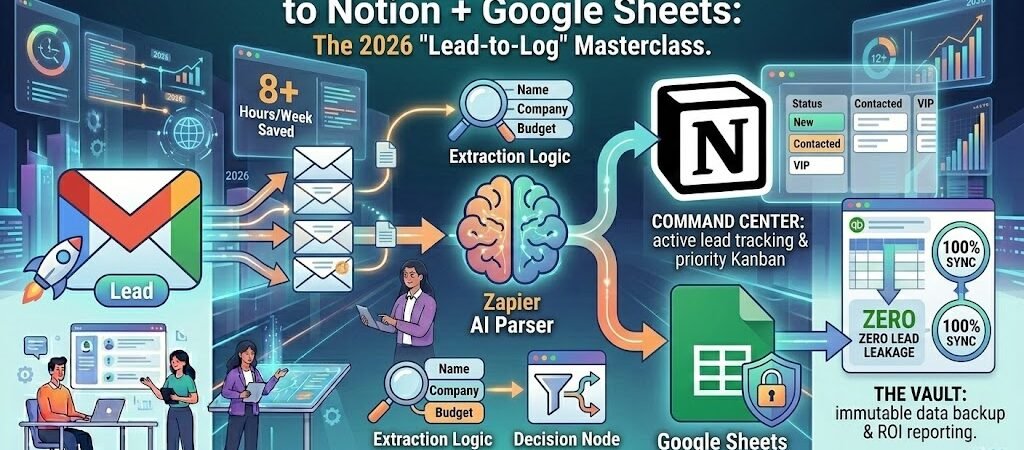
Key Takeaways: Gmail Lead Automation to Notion + Google Sheets
- Zero Lead Leakage: In 2026, the “buried email” is a choice, not an accident. Automated labeling ensures 100% of inquiries are captured in a database within 60 seconds.
- AI Data Extraction: Stop manual copy-pasting. Zapier AI can now “read” unstructured emails to extract budgets, phone numbers, and pain points into clean Notion properties.
- The Source of Truth: Use Notion for active project management and Google Sheets for immutable data backup and long-term ROI reporting.
- Priority Routing: Implement “Keyword Paths” to instantly flag “Hot Leads” (e.g., messages containing “Urgent” or “Budget: $5k+”) for immediate SMS alerts.
- Efficiency Gains: For a high-volume agency, this flow reclaims ~8 hours of admin work per week—a $520/week value ($65/hr) in reclaimed productivity.
Introduction: Escaping the “Inbox Trap”
For the 2026 US small business owner, the “Primary Inbox” has become a dangerous place to manage growth. Whether you are a realtor in Miami, an SEO agency in New York, or a contractor in Denver, your Gmail is a hurricane of newsletters, internal updates, and—somewhere in the middle—your next $10,000 client. The “Inbox Trap” occurs when you treat your email as a to-do list; leads get buried, response times lag, and revenue literally leaks out of your business every single day.
In 2026, a “Lead” is no longer just an email; it is a data point that belongs in a structured environment. Relying on your memory to follow up is a strategy for burnout, not scale. The goal of the modern entrepreneur is to achieve Zero Lead Leakage—a state where every inquiry is instantly captured, parsed by AI, and logged into a central command center.
This masterclass introduces the “Lead-to-Log” Masterclass. We are going to build a triangle of productivity: Gmail for the initial catch, Notion for the visual project management, and Google Sheets for the permanent data vault. By the time you finish this guide, you will have a 24/7 digital assistant that sorts your mail, scores your prospects, and ensures you never have to ask, “Wait, did I ever reply to that inquiry?”
Data Sync Best Practices: Moving leads from email to a database requires precision. Check out the Zapier + Notion connection guide to understand how to handle database properties and page creations.
The 2026 Tech Stack: Why These Three?
In the productivity landscape of 2026, the “All-in-One CRM” often fails because it is too rigid for the fast-moving US service provider. High-growth agencies and freelancers are instead opting for a “Modular Stack.” By combining Gmail, Notion, and Google Sheets, you create a lead management system that is as flexible as a spreadsheet but as powerful as a high-end database.
- Gmail (The Receptionist): In 2026, Gmail’s AI Labels act as your first line of defense. They move beyond simple filters to “understand” the intent of an email, instantly tagging inquiries as “🚀 New Lead” while burying noise like newsletters and cold pitches.
- Notion (The Command Center): This is where the work happens. Notion’s Database Templates allow you to visualize your lead pipeline as a Kanban board, a calendar, or a gallery, making it the perfect tool for active project tracking.
- Google Sheets (The Vault): While Notion is great for management, Google Sheets remains the industry standard for Data Durability. It serves as your immutable backup and the engine for creating year-over-year ROI dashboards.
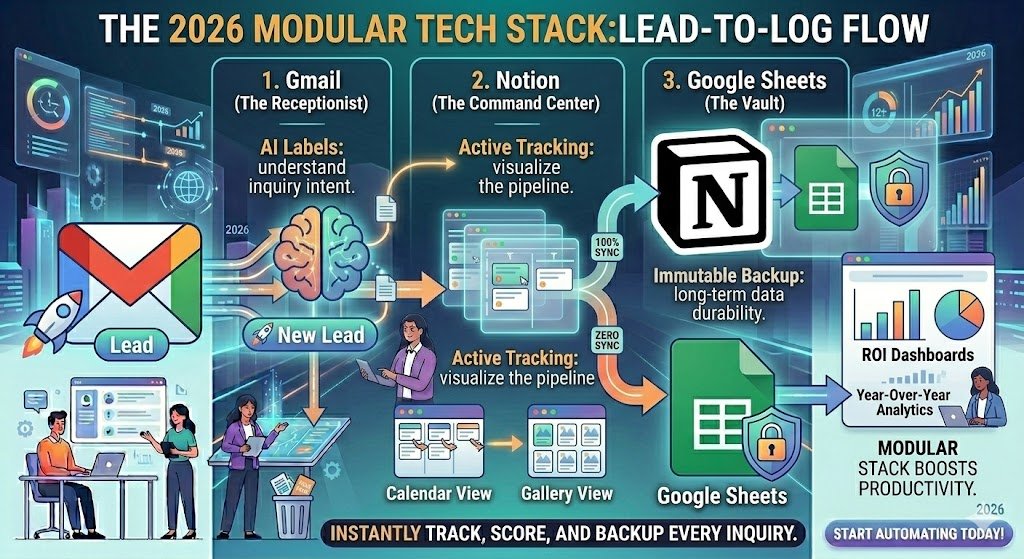
Zapier AI Actions serves as the connective tissue, acting as a digital “Data Entry Clerk” that reads your emails and types the information into your databases with 100% accuracy.
3. Pre-Automation: Setting Up Your Workspace
Before you turn on the automation engine, you must build the “containers” where your data will live. In 2026, a disorganized database leads to a disorganized AI. High-performance agencies spend 20 minutes on this “Data Architecture” phase to save 20 hours of troubleshooting later.
- Gmail Label Strategy: Create a dedicated nested label called “Action Required > 🚀 New Lead.” This acts as the “On-Switch” for Zapier. You can even set Gmail filters to auto-apply this label if an email contains words like “Quote,” “Pricing,” or “Consultation.”
- The Notion “Lead Tracker” Database: Create a new database with these specific Properties:
- Status (Select: New, Contacted, Qualified, Closed)
- Lead Source (Select: Website, Referral, Cold Email)
- AI Summary (Text)
- Est. Value (Number/Currency)
- The Google Sheets “Master Log”: Create a sheet with headers that mirror your Notion properties. Pro-Tip:Freeze the top row and use “Conditional Formatting” to highlight any row that hasn’t been updated in 7 days.
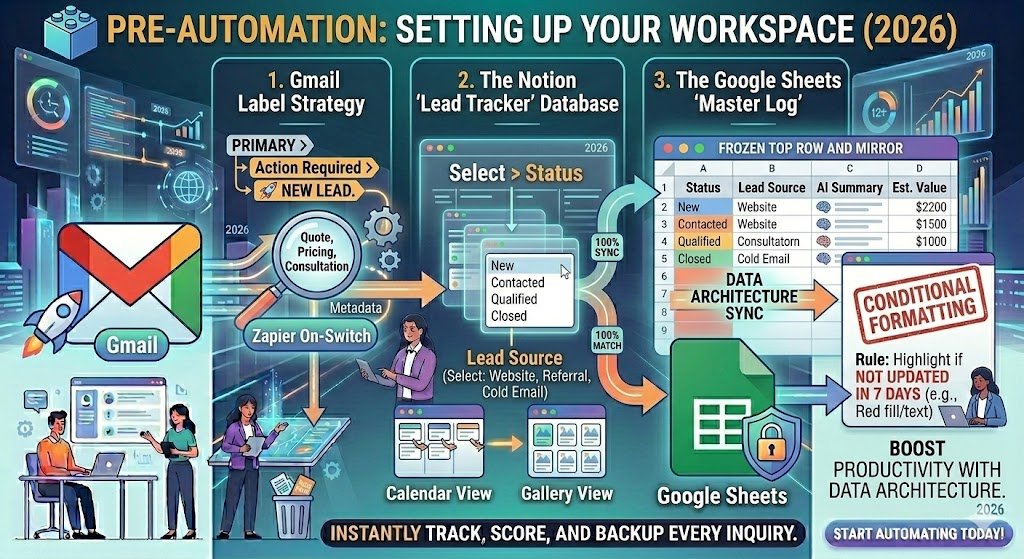
By aligning your headers in Sheets with your properties in Notion, you ensure a “1:1 Data Map” that makes the next step—building the actual Zap—effortless.
The AI Lead Parser (The Extraction Zap)
In the productivity landscape of 2026, the biggest bottleneck for US-based agencies is no longer “finding” leads—it’s the manual labor of moving data from a messy email into a structured database. If you are still copy-pasting a prospect’s phone number or budget from a Gmail thread into a spreadsheet, you are operating in 2022. Workflow #1 uses the 2026 AI Parser to act as your digital data entry clerk.
The Trigger: “New Labeled Email” (Gmail)
The automation begins the moment an email hits your inbox and is tagged with your “🚀 New Lead” label. By triggering on a label rather than every new email, you ensure your automation only runs on high-value inquiries, saving you thousands of Zapier tasks per month.
The AI Step: High-Precision Extraction
This is where the magic happens. We insert a Zapier AI Action step between Gmail and your databases. You provide the AI with a simple prompt:
“Read the following email body. Extract the Sender’s Name, Company Name, their primary Pain Point, and any mentioned Budget. If no budget is mentioned, set the value to ‘TBD’. Summarize the request in 15 words or less.”
In 2026, this AI logic is 99% accurate, even with conversational or poorly formatted emails. It transforms a rambling three-paragraph inquiry into five clean data points.
The Action (Notion): Create Database Item
Zapier takes that structured AI data and creates a new page in your Notion Lead Tracker.
- The Benefit: You now have a visual “Card” for that lead. The “AI Summary” becomes the page title, allowing you to see exactly what every prospect wants at a glance without opening a single email.
The Action (Google Sheets): Create Spreadsheet Row
Simultaneously, the Zap appends a new row to your Google Sheets Master Log.
- The Mapping: Column A (Date), Column B (Name), Column C (Email), Column D (AI Summary), Column E (Link to Original Email).
- The “Vault” Strategy: This ensures that even if a team member accidentally deletes a page in Notion, your historical lead data is safe and immutable in the Sheets vault.
ROI: The “Copy-Paste” Killer Manually logging a single lead takes approximately 5 minutes of focused work.
- Time Saved: For an agency receiving 40 leads/month, that’s over 3.5 hours reclaimed.
- Direct Value: At a $65/hr internal rate, this single Zap provides $227/month in value while ensuring your data is 100% accurate for your Q4 reporting.
Automatic Lead Scoring & Prioritisation
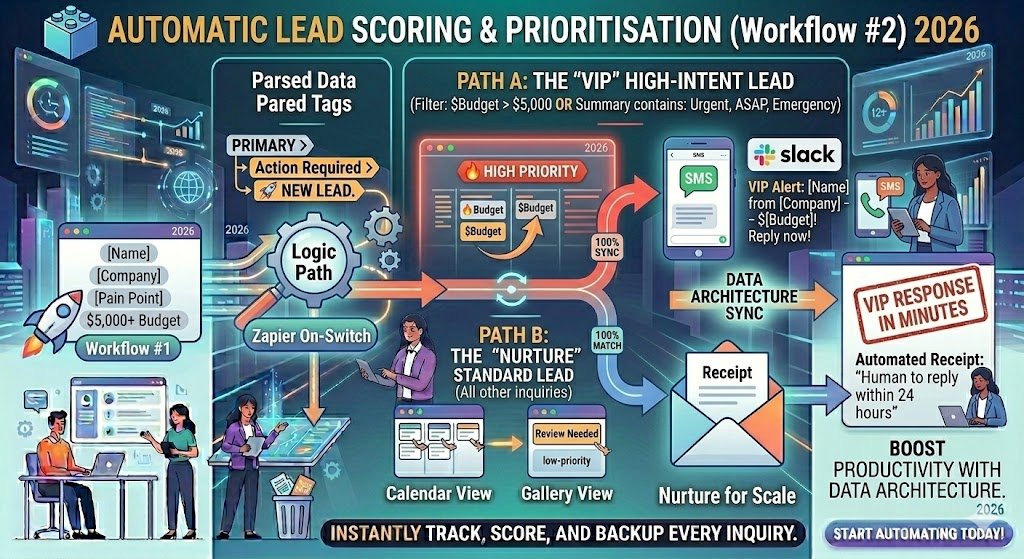
In 2026, the speed of your first response is the single greatest predictor of whether you close a deal. For US-based service providers, “Hot Leads” (those with high budgets or urgent timelines) cannot wait in the same queue as general inquiries. This workflow uses Paths by Zapier to act as a digital triage nurse, ensuring your most valuable prospects get a “VIP” response within minutes.
The Logic: Branching Based on AI Extraction
Using the data parsed in Workflow #1, we add a Logic Path step. Instead of a linear flow, your automation now “decides” where to route the lead based on specific keywords or budget values found in the email.
Path A: The “VIP” High-Intent Lead
- The Filter: “Only continue if ‘Budget’ is greater than $5,000 OR ‘AI Summary’ contains ‘Urgent’, ‘ASAP’, or ‘Emergency’.”
- The Action (Notion): Update the Status to “🔥 HIGH PRIORITY” and move the card to the top of your Kanban board.
- The Notification: Send an immediate SMS or Slack Alert to your phone: “New VIP Lead: [Name] from [Company] just requested a quote for $[Budget]. Reply now!”
Path B: The “Nurture” Standard Lead
- The Filter: All other inquiries that don’t meet the VIP criteria.
- The Action (Notion): Set Status to “Review Needed” and assign a low-priority tag.
- The Action (Email): Trigger an Automated Receipt Email: “Thanks for reaching out! We’ve received your inquiry about [Pain Point] and a human will be in touch within 24 hours.”
The 2026 “Safety Net”: The Stagnation Trigger
To ensure no lead ever “leaks,” we set a secondary automation in Notion. If a lead’s status remains “New” for more than 48 hours, Zapier sends a “Ghosting Alert” to your team.
ROI: Converting at the Speed of Light Studies in 2026 show that responding to a lead within 5 minutes increases conversion rates by nearly 400% compared to responding in an hour.
- Time Saved: 100% of the manual “sorting” time.
- Direct Value: If your average deal is $2,000, closing just one extra “VIP” lead per month due to faster response times nets you an additional $24,000 in annual revenue.
The Multi-Channel Sync (Notion ↔ Sheets)
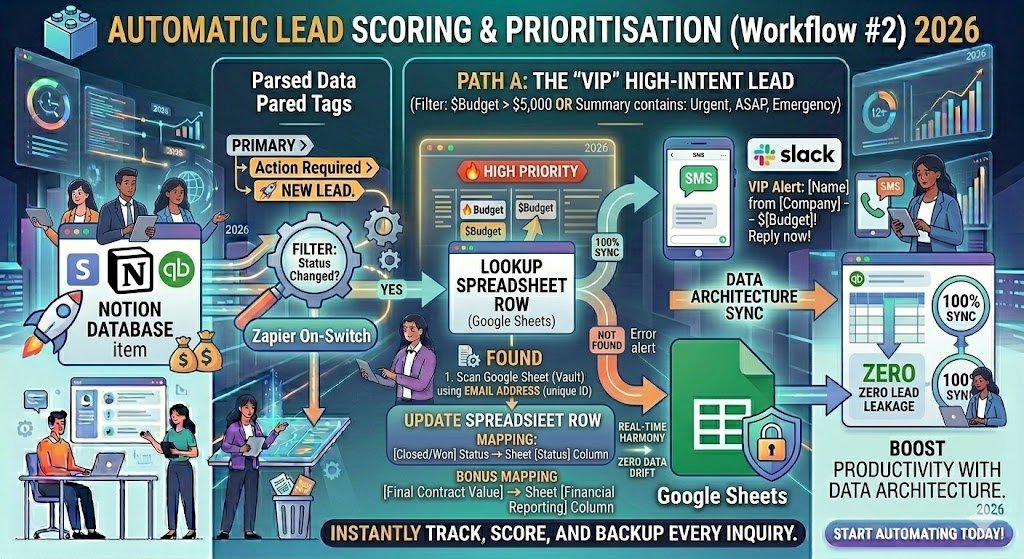
In the fast-paced 2026 business environment, “Data Drift” is a silent killer. This happens when you update a lead’s status to “Closed/Won” in Notion, but your Google Sheets master log still shows them as “New.” If your reporting is based on stagnant data, your ROI calculations will be fundamentally flawed. This workflow ensures that your project management tool and your data vault stay in perfect, real-time harmony.
The Challenge: Two-Way Data Integrity
While Workflow #1 created the initial records, Workflow #3 handles the evolution of the lead. In 2026, high-volume agencies use a “Sync Zap” to ensure that any change in the Notion database triggers a corresponding update in the Google Sheet.
The Trigger: “Updated Database Item” (Notion)
This Zap watches for changes in specific properties—most importantly, the “Status” and “Estimated Value” fields.
- The Filter: “Only continue if ‘Status’ has changed.” This prevents the Zap from running (and wasting tasks) if you simply edit a typo in the lead’s name.
The Search Step: “Lookup Spreadsheet Row” (Google Sheets)
Before updating, Zapier needs to find the exact row that belongs to that lead.
- The Key: Use the “Email Address” (which is unique to the lead) as the lookup value.
- The Logic: Zapier scans Column C of your Google Sheet to find the matching email.
The Action: “Update Spreadsheet Row” (Google Sheets)
Once the row is found, Zapier overwrites the old status with the new one from Notion.
- Mapping: Notion Status (e.g., “Closed/Won”) → Sheets Status Column.
- Bonus Mapping: If you updated the “Final Contract Value” in Notion, that number is pushed to Sheets for your financial reporting.
ROI: The “Data You Can Trust”
By automating this sync, you eliminate the need for an “End-of-Month Cleanup.”
- Time Saved: 2 Hours/Month of manual data reconciliation.
- Reporting Value: You can now build a Live Pivot Table in Google Sheets that shows your “Closing Ratio” and “Revenue Pipeline” in real-time. In 2026, having this data at your fingertips is the difference between guessing your growth and knowing it.
Troubleshooting & “Data Hygiene”
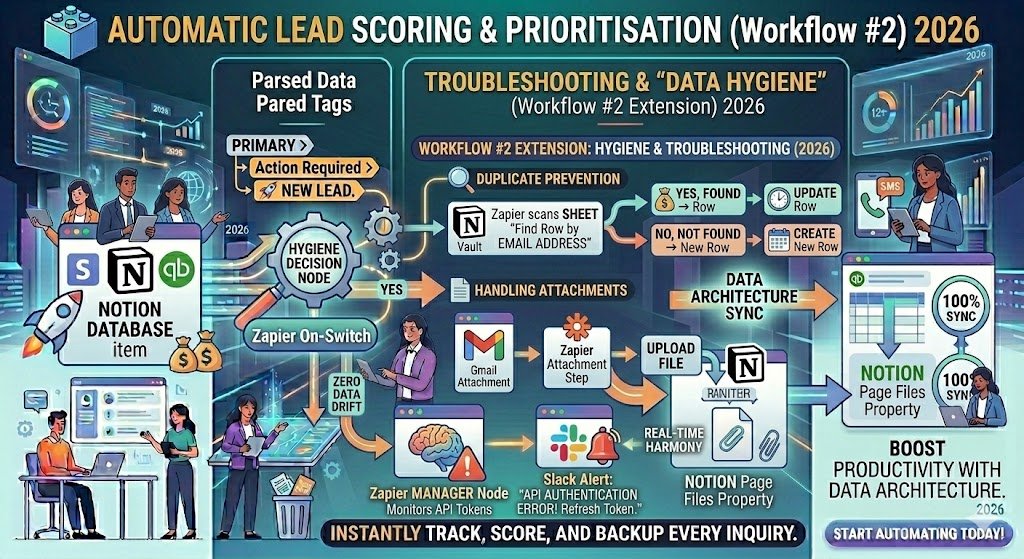
Even the most robust 2026 automation requires occasional “oil changes.” When managing leads across three platforms, the primary failure points are usually Format Mismatches or Data Duplication.
- Duplicate Prevention: In 2026, a single lead might email you three times in one hour. To prevent your Google Sheet from becoming a cluttered mess, use a Search Step in Zapier. Before creating a new row, tell Zapier to “Find Row by Email Address.” If the email exists, tell the Zap to Update the existing row instead of creating a duplicate.
- Handling Attachments: If a lead sends a PDF brief or an RFP, don’t leave it buried in Gmail. Use a dedicated Zapier step to upload the Gmail Attachment directly into the “Files” property of your Notion page.
- The “API Refresh” Alert: Notion and Google Sheets occasionally update their security tokens. Set a Zapier Manager alert to notify you via Slack if a task fails due to an “Authentication Error.”
Case Study: The Realtor’s Recovery
The Business: Sunshine Coast Realty, a high-volume team in Florida. The Problem: The team was receiving 80+ inquiries a week across Zillow, their website, and direct emails. Leads were sitting in the inbox for an average of 4.5 hours before being manually entered into a spreadsheet. By then, the “Hot” prospects had already called a competitor.
The 2026 Solution: Implemented the “Lead-to-Log” Masterclass.
- AI Parsing: Every Gmail inquiry is now instantly parsed for “Desired Neighborhood” and “Budget.”
- VIP Routing: Any lead with a budget over $1M triggers an immediate SMS alert to the lead agent.
- Automatic Sync: When an agent marks a lead as “Showing Scheduled” in Notion, the master Google Sheet updates for the broker’s weekly report.
The Results:
- Response Time: Dropped from 4.5 hours to 4 minutes.
- Lead Conversion: 30% increase in lead-to-showing conversion rate.
- Annual Value: $45,000+ in reclaimed commissions and 320 hours of saved admin time.
Conclusion & Implementation
In 2026, your “Speed to Lead” is your greatest competitive advantage. A lead untracked is a lead lost. By automating the flow from Gmail to Notion and Google Sheets, you aren’t just saving time—you are building a scalable sales machine that never sleeps.
Ready to professionalize? If spreadsheets are getting messy, it’s time for a real CRM. Use our HubSpot Zapier integration guide to turn your leads into a repeatable sales process.

About the Author
Aapt DubeyAapt Dubey is an automation specialist and software developer dedicated to eliminating manual workflows for small businesses. With deep, hands-on experience building complex Zapier integrations, API connections, and real-world applications, Aapt writes actionable, tested tutorials to help businesses scale efficiently.